Whisparr Not Working? Common Errors and How to Fix Them
Startup failures, indexer errors, stuck queues and import problems — diagnosed in order.
Read guide →Configure Whisparr properly after install — a practical, beginner-friendly walkthrough.
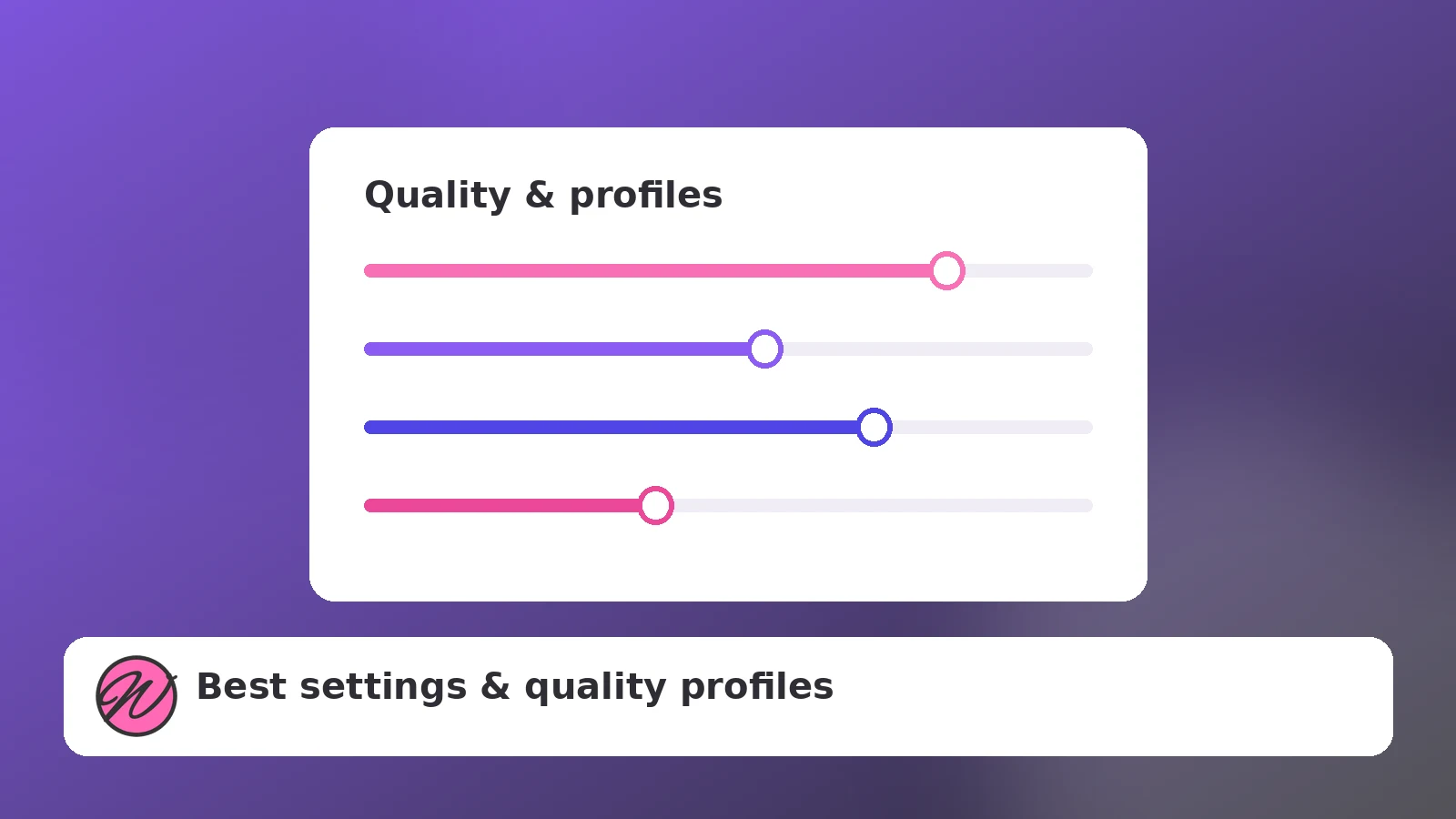
A fresh Whisparr install works out of the box, but the defaults are deliberately neutral. Fifteen minutes in Settings decides whether you get a tidy, self-maintaining library or constant churn of re-downloads and odd file names. These are the settings worth changing, in the order worth changing them.
Enable authentication before anything else and set a strong password. If you ever plan to reach the UI from outside your home, do it through a VPN or an HTTPS reverse proxy — never by forwarding the raw port. While you are here, note the API key; Prowlarr and other tools will ask for it.
A quality profile has two levers: which qualities are allowed, and the upgrade cutoff. The mistake beginners make is allowing everything and setting the cutoff to the maximum — which tells Whisparr to keep re-downloading the same items forever as marginally better releases appear.
Turn renaming on and build a format that is readable, sortable and consistent. Good schemes share three traits: the title comes first, the year or date disambiguates, and the quality tag comes last. Avoid characters that misbehave across operating systems (colons, slashes, question marks) — Whisparr's replacement rules handle most of this if renaming is enabled.
One root folder per library type is plenty. Resist the urge to create many root folders as a categorization system — categories belong in tags and metadata, not in the filesystem. Keep the root folder inside the same data parent as your downloads so imports are instant hardlinks (the layout every guide on this site uses).
More indexers is not automatically better. A few reliable indexers with correct categories outperform a dozen flaky ones that time out and stall searches. If you run Prowlarr, manage everything there and let it sync — one place to fix keys and URLs. Set sensible retention and seed settings on the download client side so the client, not Whisparr, enforces your sharing rules.
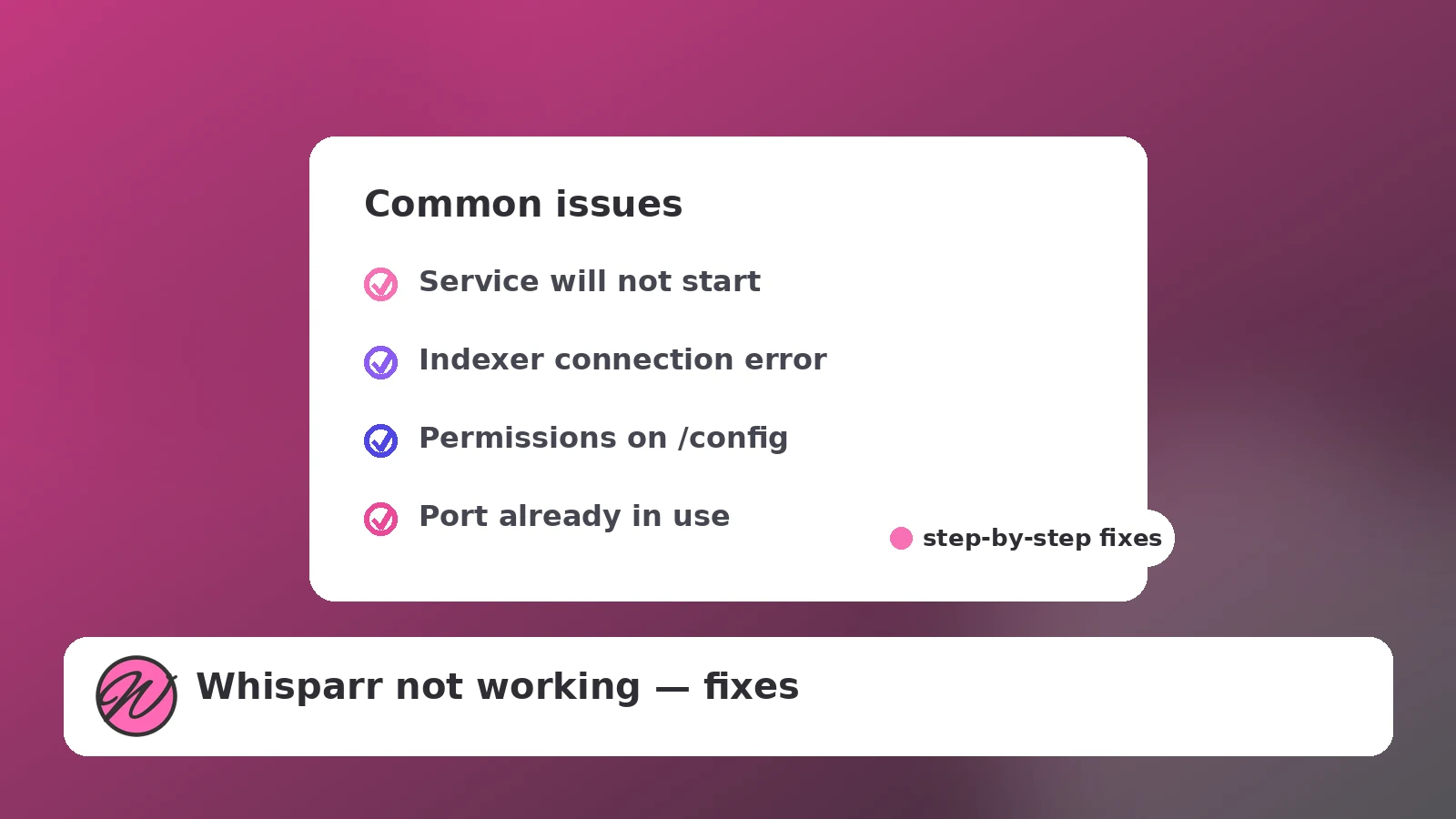
Startup failures, indexer errors, stuck queues and import problems — diagnosed in order.
Read guide →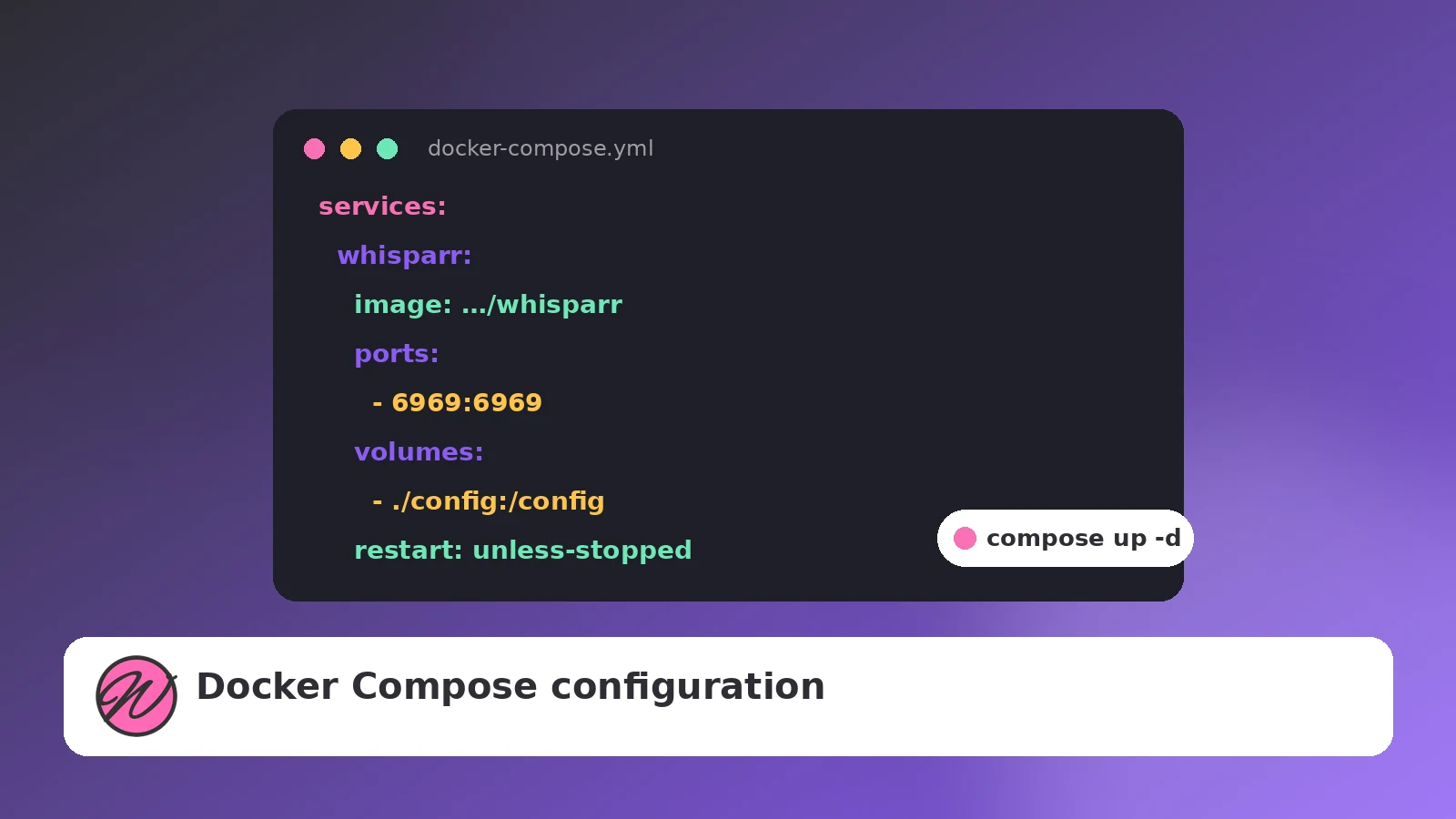
One small YAML file that makes your Whisparr deployment reproducible, documented and easy to update.
Read guide →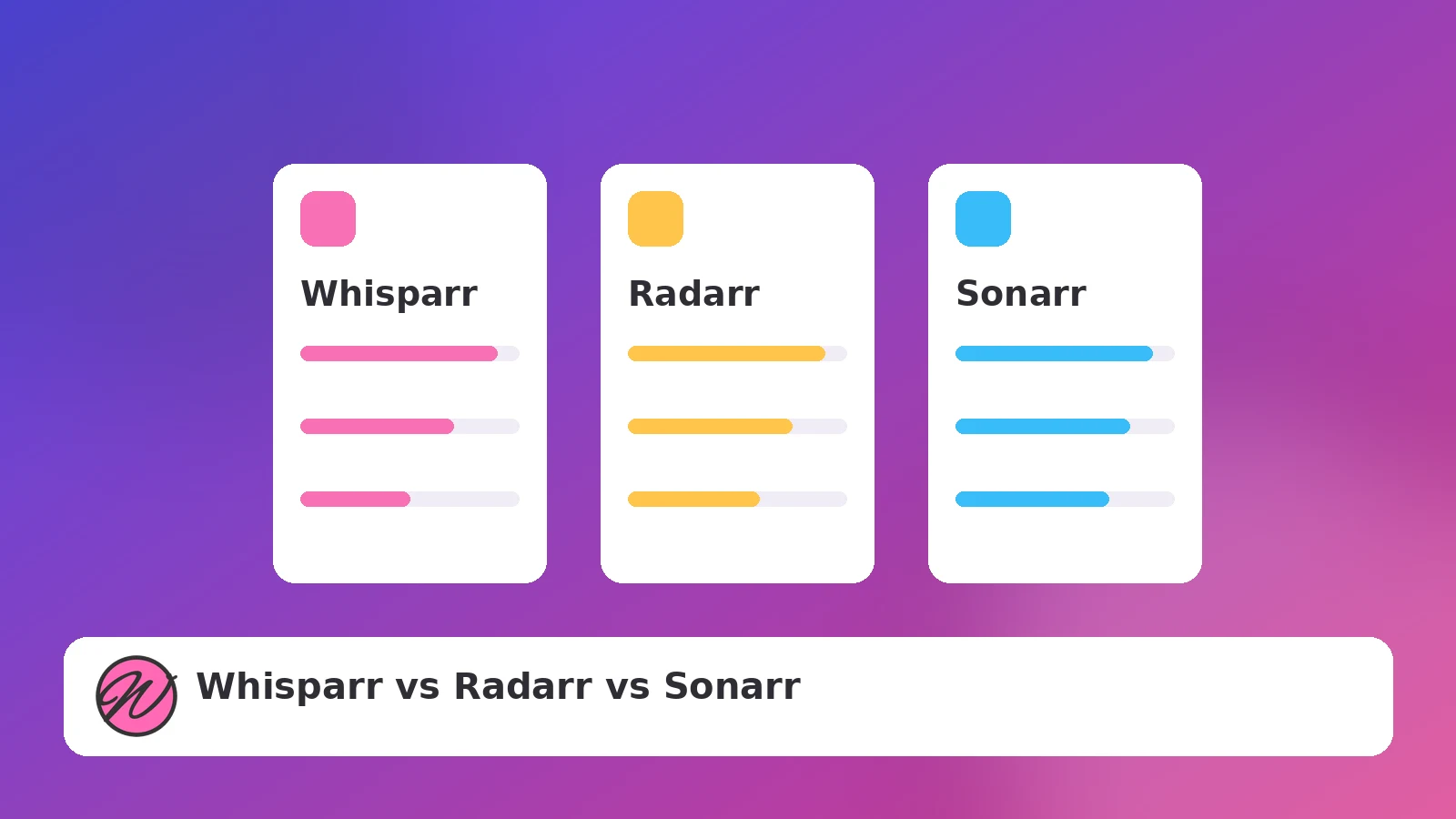
Same family, different jobs — what carries over between the *arr apps and what does not.
Read guide →